
Getting Started
Thank you for trying Muvely! Start by downloading and installing the Muvely browser extension and accompanying software from the Download page.
Setup
Position your laptop 4-6 feet away with the camera aimed at your workout area. Then play any YouTube exercise video and activate the browser extension.
Install the software and extension from the Download page.
Position your laptop 4-6 feet away, with the camera facing your workout area.
Begin playing a YouTube exercise video.
Click the Muvely browser extension icon and press Start.
Grant camera access when prompted by your browser.
Visual Feedback
Two overlays appear during workouts on the left side of the video:
Camera view — shows a live feed from your camera so you can monitor your position.
Form indicator — a light-blue human outline that provides real-time feedback about your body positioning.
If nothing appears, try refreshing the page and pressing Start again.
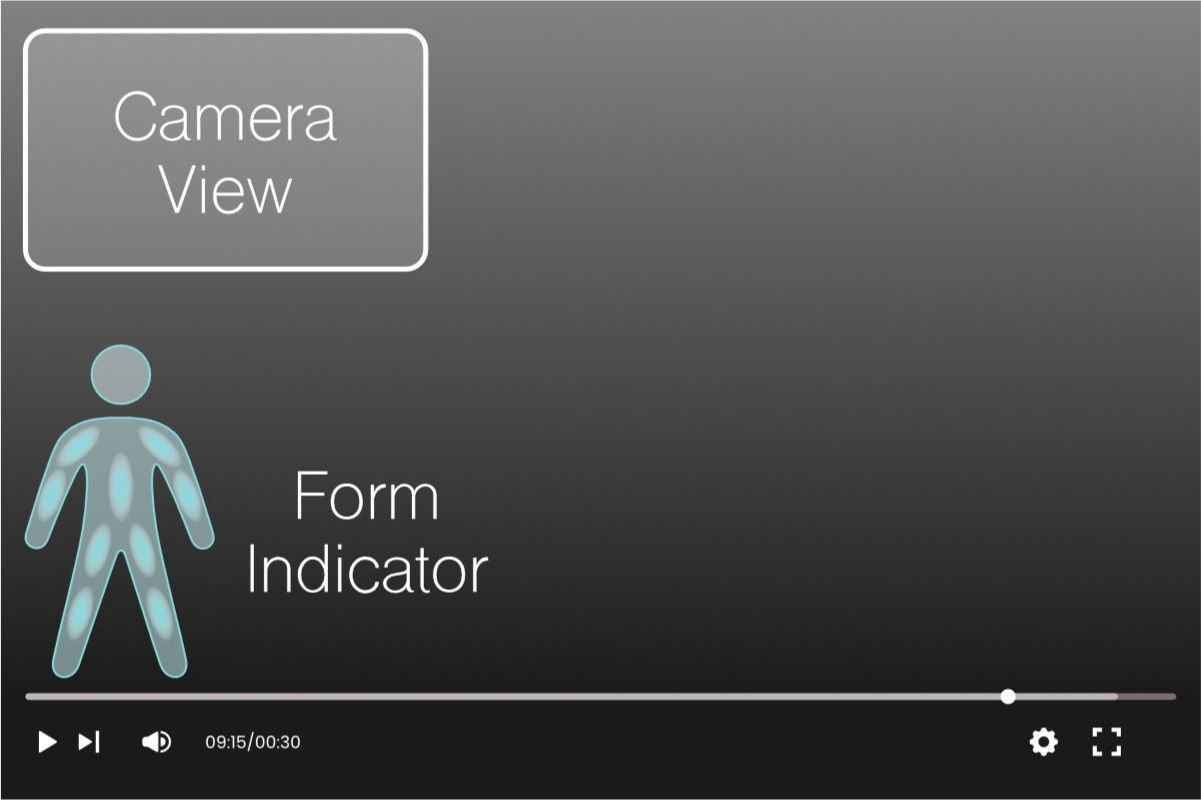
For best results, make sure you’re far enough away from the camera for your whole body to be visible, including hands and feet.
The form indicator tells you in real time which parts of your body may have incorrect form:
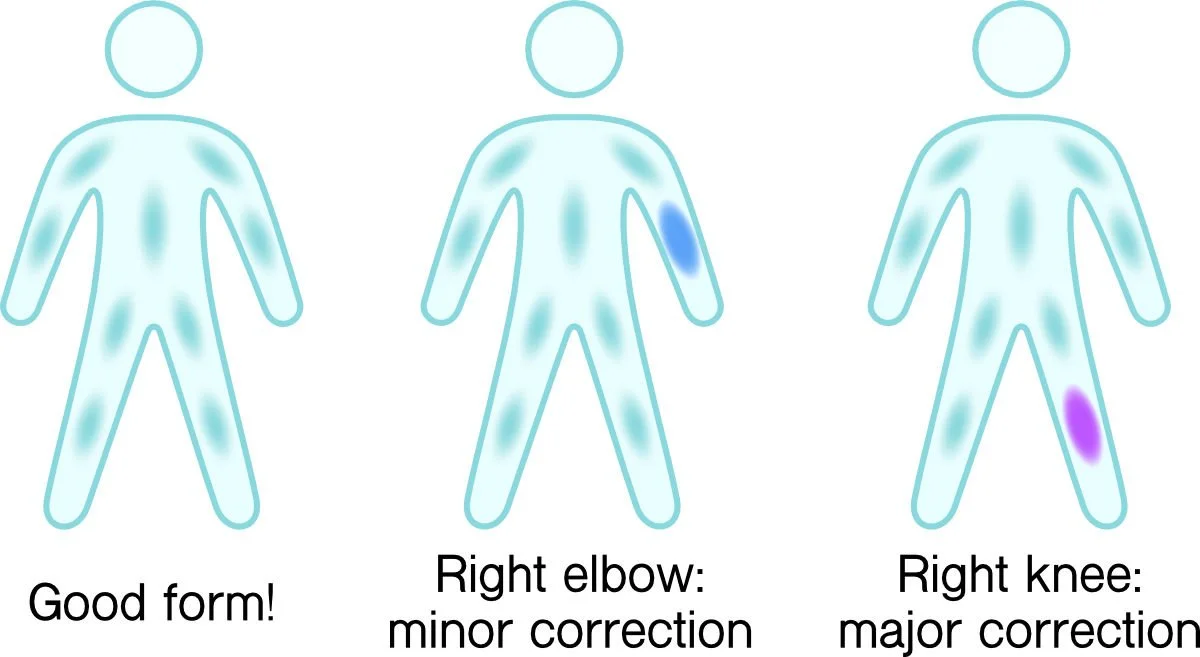
You’ll also receive audio feedback as you exercise with details on what to correct.
Need Help?
Check out our FAQ page for common questions. If you run into any issues, please send us a message. Have a great workout!